

🌐 The Gateway to the Metaverse: A Definitive How-To Guide for Downloading and Installing Roblox
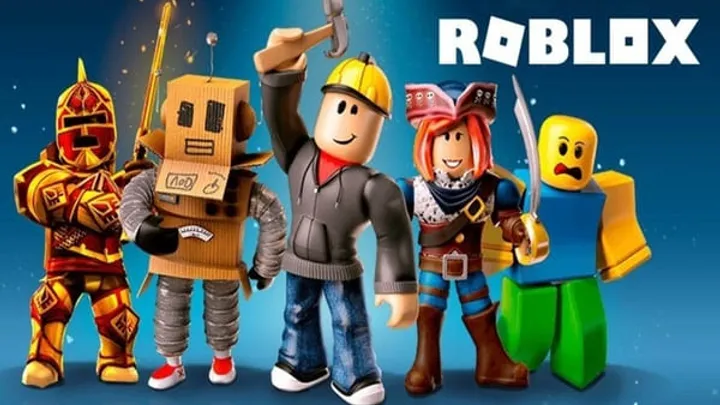
Roblox is not a single game, but a sprawling, ever-expanding platform that hosts millions of unique digital experiences created by a global community. To access this limitless virtual universe, you first need to properly install the Roblox Player application on your chosen device. While the process is generally straightforward, understanding the subtle differences between installing on PC (via the browser or Microsoft Store), Mac, and mobile devices is crucial for optimizing your experience, managing system requirements, and ensuring long-term security. This expert guide provides a step-by-step roadmap to navigate the download process successfully, set up your account securely, and begin exploring the vast Roblox metaverse.
💻 Phase I: System Check and Account Creation (The Prerequisites)
Before initiating any download, ensuring your device meets the minimum requirements and establishing a secure account are essential first steps.
1. Verifying System Requirements (PC, Mac, Mobile)
While Roblox is famous for its accessibility, the complexity of modern games on the platform (like Adopt Me! or Tower of Hell) requires adequate hardware for smooth performance. Failure to check requirements leads to poor frame rates, lag, and crashing.
- PC/Windows: Roblox recommends a 64-bit version of Windows 10 or 11. Your graphics card should support DirectX 10 or higher. A processor with a clock speed of 1.6 Ghz or better and at least 1 GB of RAM is recommended. You only need about 300 MB of free storage for the base installation.
- Mac: The application will install on macOS 10.13 (High Sierra) or higher. The recommended web browsers for Mac are Chrome, Firefox, or Safari.
- Mobile (iOS/Android):
- iOS: Requires iOS 13/iPadOS 13 or higher (e.g., iPhone 6s and newer).
- Android: Requires Android OS 8.0 or higher and devices must support at least OpenGL ES 3.0.
Expert Tip: Even if you meet the minimum requirements, a faster internet connection (4-8 Mb/s minimum) is vital, as all Roblox experiences are online and require continuous data transfer.
2. Creating Your Secure Roblox Account
The Roblox Player is merely the launcher; all your progress, purchased Robux, and avatar customization are tied to your personal account, which must be created before you can play.
- Step 1: Visit the Official Website: Navigate to roblox.com in your web browser.
- Step 2: Sign Up: Enter your Date of Birth (required for compliance with child online privacy laws), choose a unique Username (letters, numbers, and underscores only), and create a strong, memorable Password (at least eight characters).
- Step 3: Security: Immediately enable Two-Step Verification (2FA) via the Settings menu once logged in. This links a secondary device (like your email or phone) to the login process, preventing unauthorized access and protecting your virtual assets.
Account Creation Checklist
- Unique Username (Cannot be changed for free).
- Strong Password (Minimum 8 characters).
- Verified Email Address (Essential for recovery).
- 2FA Enabled (Maximum Security).
📥 Phase II: Downloading and Installing on PC and Mac
The installation process for desktop platforms is highly integrated with the website experience, making it simple but requiring a browser.
3. PC Installation via Web Browser (The Standard Method)
For Windows users, the easiest method leverages the browser-to-application integration. You do not need to manually find and download an installer file beforehand.
- Initiate the Download: Log into your Roblox account on the website and browse to any experience (game) you wish to play. Click the prominent green Play button.
- Automatic Prompt: A small pop-up window will appear, indicating that the Roblox Player is installing. Your browser will download a small launcher file (e.g., RobloxPlayerLauncher.exe). Run this file from your downloads bar or folder.
- Installation Completion: The launcher will automatically download the core client files and install the application. Once complete, the chosen experience will automatically open, launching you into the game world. The Roblox Player application is now permanently installed on your PC.
4. PC Installation via Microsoft Store (Alternative Method)
The Microsoft Store offers an alternative, self-contained method of installation for Windows users, which can simplify management and updates.
- Store Search: Open the Microsoft Store application on your Windows PC and search for "Roblox."
- Download and Install: Click the Install or Get button. The Microsoft Store handles the entire download and installation process in the background.
- Pros/Cons of Store vs. Browser:
- Pros (Store): Automatic updates handled by Windows; simpler installation for users unfamiliar with downloading files from a browser.
- Cons (Store): Sometimes less optimized for performance compared to the direct website client; may have minor delays in receiving the absolute latest updates.
5. Mac Installation Procedure
The Mac installation is similar to Windows but involves a slightly different file handling process, typical of macOS applications.
- Initiate and Download: Log in to the Roblox website, click the Play button on any experience. The browser will download a file, typically a .dmg file.
- Run the Installer: Double-click the downloaded .dmg file to open the installer window.
- Finalize Installation: Drag the Roblox.app icon into the Applications folder displayed in the installer window. Close the window and run the app from your Applications folder or Dock. The game will now launch automatically when you click Play on the website.
📱 Phase III: Mobile and Other Platforms (On-the-Go Access)
Roblox is fully cross-platform, allowing users on mobile, console, and even specific tablets to access the same millions of experiences.
6. Installation on Android Devices
The process for Android is managed entirely through the official Google Play Store.
- Store Access: Open the Google Play Store application on your Android phone or tablet.
- Search and Install: Use the search bar to find "Roblox." Tap the Install button on the official Roblox app page (verify the developer is Roblox Corporation).
- Launch and Login: Once the download and installation are complete, tap Open, and use your previously created account credentials to log in. You will now browse and launch experiences directly through the app interface.
7. Installation on Apple iOS Devices (iPhone/iPad)
For iPhones and iPads, the App Store is the sole official source for the Roblox Player application.
- App Store Access: Open the App Store on your iOS device.
- Search and Get: Search for "Roblox." Tap the Get button and confirm the download using your Apple ID, Face ID, or Touch ID.
- Mobile Optimization: The mobile app is designed to simplify controls and optimize graphics for smaller screens and touch input. Check your device's settings to ensure the graphics quality is set appropriately for your hardware to maximize performance.
8. Installation on Chromebooks and Consoles
Roblox's accessibility extends to Chrome OS and major gaming consoles.
- Chromebook: Since Chromebooks support the Google Play Store (on modern versions), the installation mirrors the standard Android process. You must first ensure the Google Play Store is enabled in your Chromebook settings.
- Xbox Console: Search for "Roblox" directly in the Microsoft Store on your Xbox console (Xbox One, Series X/S). The experience is optimized for controller input and large screens, but the game library is slightly curated compared to the full PC/Mobile library.
🛠️ Phase IV: Post-Installation Checks and Troubleshooting
After the core application is installed, two final steps ensure security and optimal performance.
9. Initial Performance Test and Graphics Settings
Before jumping into a complex, high-graphics experience, perform a quick test to calibrate your settings.
- Graphics Quality: Once in any game, press the Esc key (on PC/Mac) or access the settings icon (on mobile). Find the Graphics Quality setting.
- If you experience lag or low frame rates, set the quality to Automatic or manually lower it to $3/10$ or $4/10$.
- If your system is powerful, you can set it to the maximum for the best visual experience.
- Troubleshooting the Firewall: If the application installs but fails to launch or connect to an experience, your Firewall or Antivirus software may be blocking the connection. Temporarily allow the Roblox application through your security software, or manually add it as an exception.
10. Security Assurance and Child Safety (Final Step)
For the protection of all users, especially children, final security steps are vital after installation.
- Parental Controls: If setting up an account for a child, utilize the Parental Controls feature found in the settings menu. This allows you to restrict chat settings, filter content, and monitor in-game spending.
- PIN Code: Set a Parent PIN to prevent unauthorized changes to the account settings, spending limits, or privacy controls. This ensures the safety measures you put in place cannot be easily overridden.